Shutdown Shortcut for Windows 10 and 11 — With Countdown and Cancel
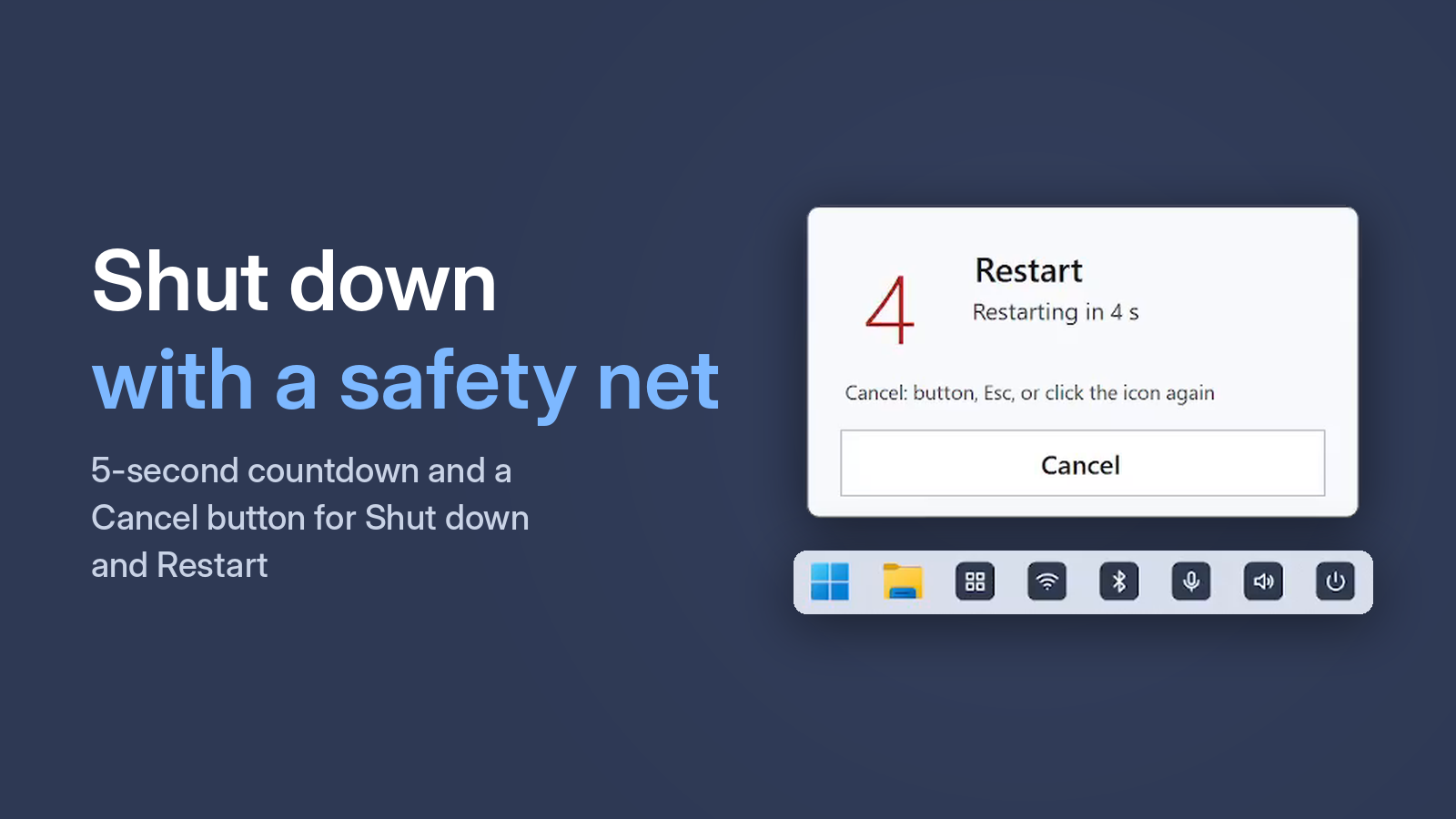
A shutdown button on the desktop is great — until you click it by accident and lose unsaved work. A good shutdown shortcut should give you a few seconds to cancel.
Option 1. Start menu and Alt + F4
Start → Power → Shut down. Or press Alt + F4 on an empty desktop → Shut down. Once clicked, there is no way back.
Option 2. A shortcut with the shutdown command
- Right-click the desktop → New → Shortcut.
- For the location, enter:
shutdown /s /t 30 - Name it "Shut down" and click Finish.
The PC shuts down in 30 seconds. To cancel you need a second shortcut with shutdown /a, or type it into Win + R in time. It works, but cancelling is awkward and there is no countdown on screen.
Option 3. A button with countdown and Cancel
In One Click Switcher, the Shut down button immediately shows a 5-second countdown with a soft sound. Cancel it any natural way:
- the Cancel button;
- Esc or Space;
- a click on the countdown window;
- clicking the same icon again.
Free · Windows 10 and 11 · no ads
Which to choose
For a timer of half an hour or an hour, use shutdown with the number of seconds (/t 3600 is one hour). For a plain "shut down now" button that forgives a misclick, the countdown button is easier.