Restart Shortcut for Windows 10 and 11 — One Click, With Cancel
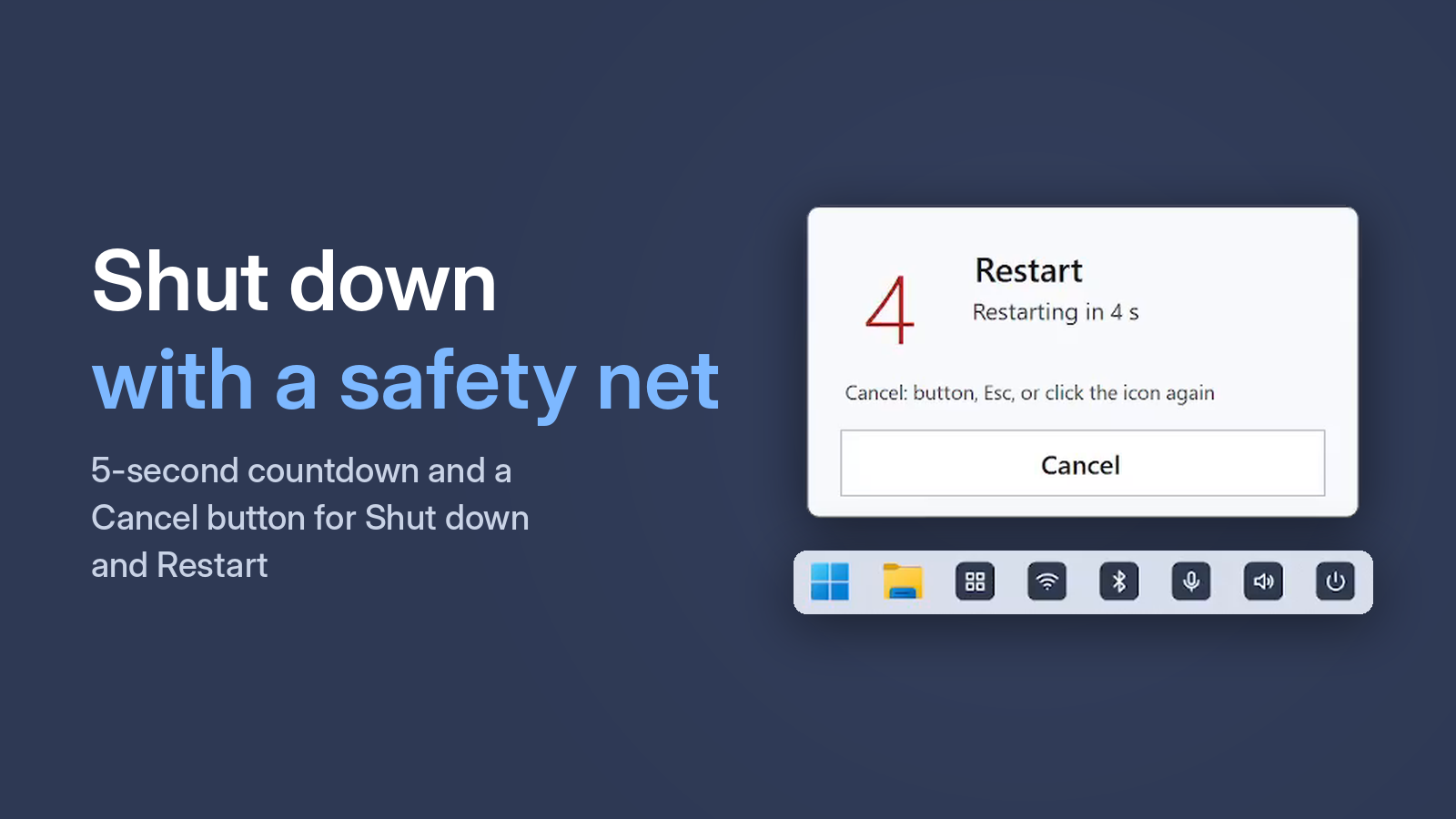
You restart more often than you think: after updates, when the system gets sluggish, a device drops off, or an app hangs. Here is how to restart faster on Windows 10 and 11.
Option 1. The Start menu
Start → Power → Restart. Or Ctrl + Alt + Del → the power icon in the bottom-right corner → Restart — this works even when Start won't open.
Option 2. A shortcut with a command
- Right-click the desktop → New → Shortcut.
- Enter:
shutdown /r /t 30 - Name it "Restart".
The PC restarts in 30 seconds. You can cancel with shutdown /a — if you type it in time, since there is no countdown on screen.
Option 3. A button with countdown and Cancel
One Click Switcher adds a Restart button to your taskbar. After a click you get a 5-second countdown with a Cancel button — changed your mind? Press it, Esc, or the same button again.
Free · Windows 10 and 11 · no ads
Why Restart beats shutting down and turning back on
Windows 10 and 11 have Fast Startup on by default: when you shut down, the system saves part of its state to start faster next time. Restart, on the other hand, starts Windows completely fresh. That is why, when something misbehaves, a restart is what actually helps.