How to Mute Your Microphone on PC in One Click — Windows 10 and 11
The call is over but the microphone is still on? Need to go quiet mid-meeting without hunting for the mute button in every app? Here are the ways to mute your microphone on Windows 10 and 11, from built-in to fastest.
Option 1. Windows Settings
- Press Win + I and open System → Sound.
- Under Input, pick the microphone and open its properties.
- Turn the device off: on Windows 11 the button is Don't allow, on Windows 10 it is the Disable checkbox. You can also drag the volume to zero.
Reliable, but it takes 5–6 clicks, and you have to go the same way to turn it back on.
Option 2. The mute button in your call app
Zoom, Teams, Telegram and others have their own microphone button. The catch: it mutes you only in that app — every other program can still hear you. Windows 11 also has Win + Alt + K, but it works only during a call and only in apps that support it.
Option 3. One taskbar button
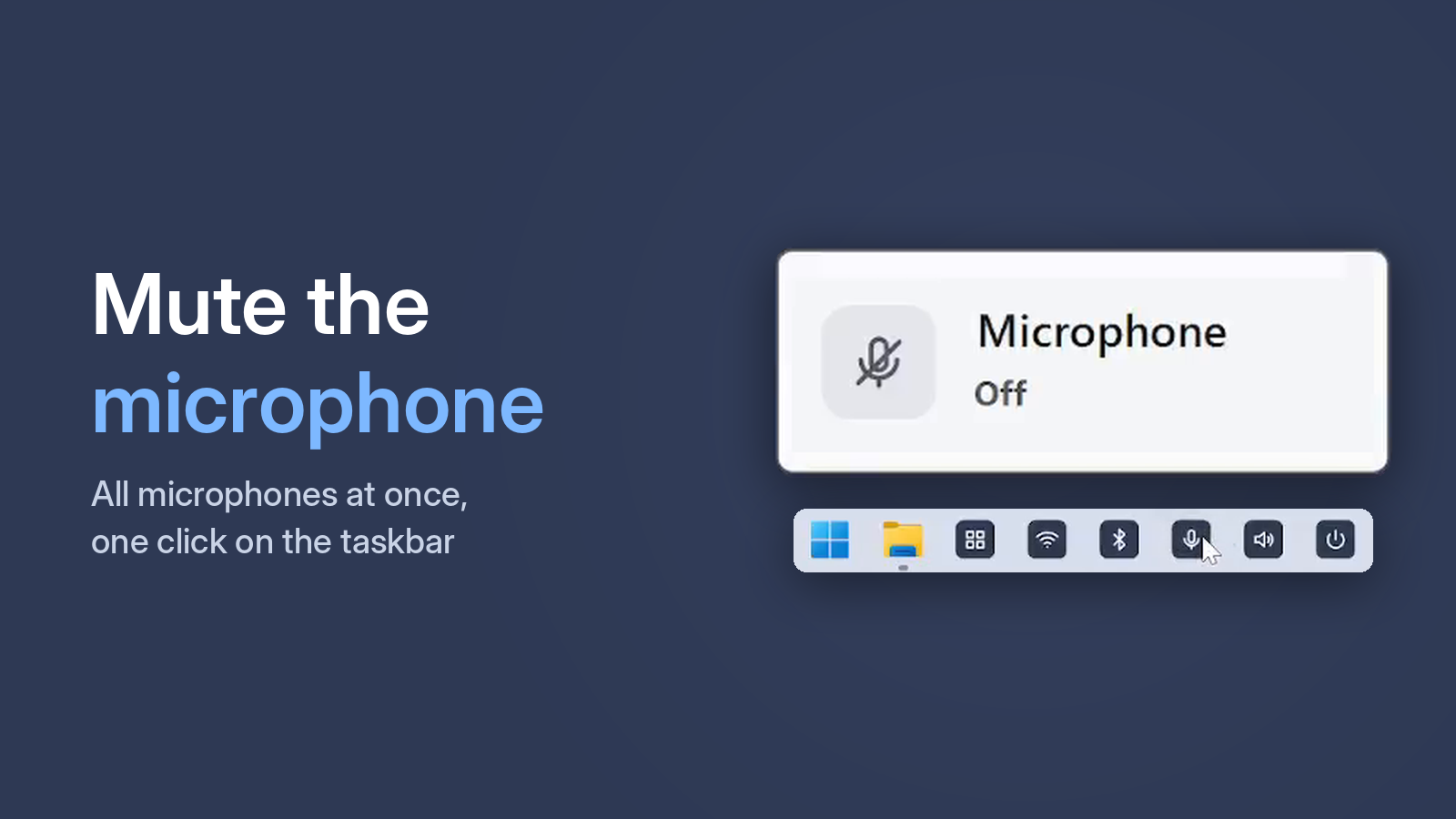
One Click Switcher adds a Microphone button to your taskbar. One click mutes every microphone on the PC at once: built-in, headset and webcam. Click again to unmute. A short sound and a "Microphone muted" pop-up confirm it worked.
Free · Windows 10 and 11 · no ads
Webcam or USB microphone does not mute?
On some webcams and USB microphones, Windows cannot mute the microphone in the standard way. For these devices One Click Switcher also lowers the microphone level to zero and restores it when you unmute.
How to check the microphone is really off
Open Settings → System → Sound and speak: the microphone level bar should not move. If in doubt, make a short recording in the Windows voice recorder app. In One Click Switcher, the Status window shows it at a glance.