How to Lock Your PC Quickly — Lock Button on the Taskbar
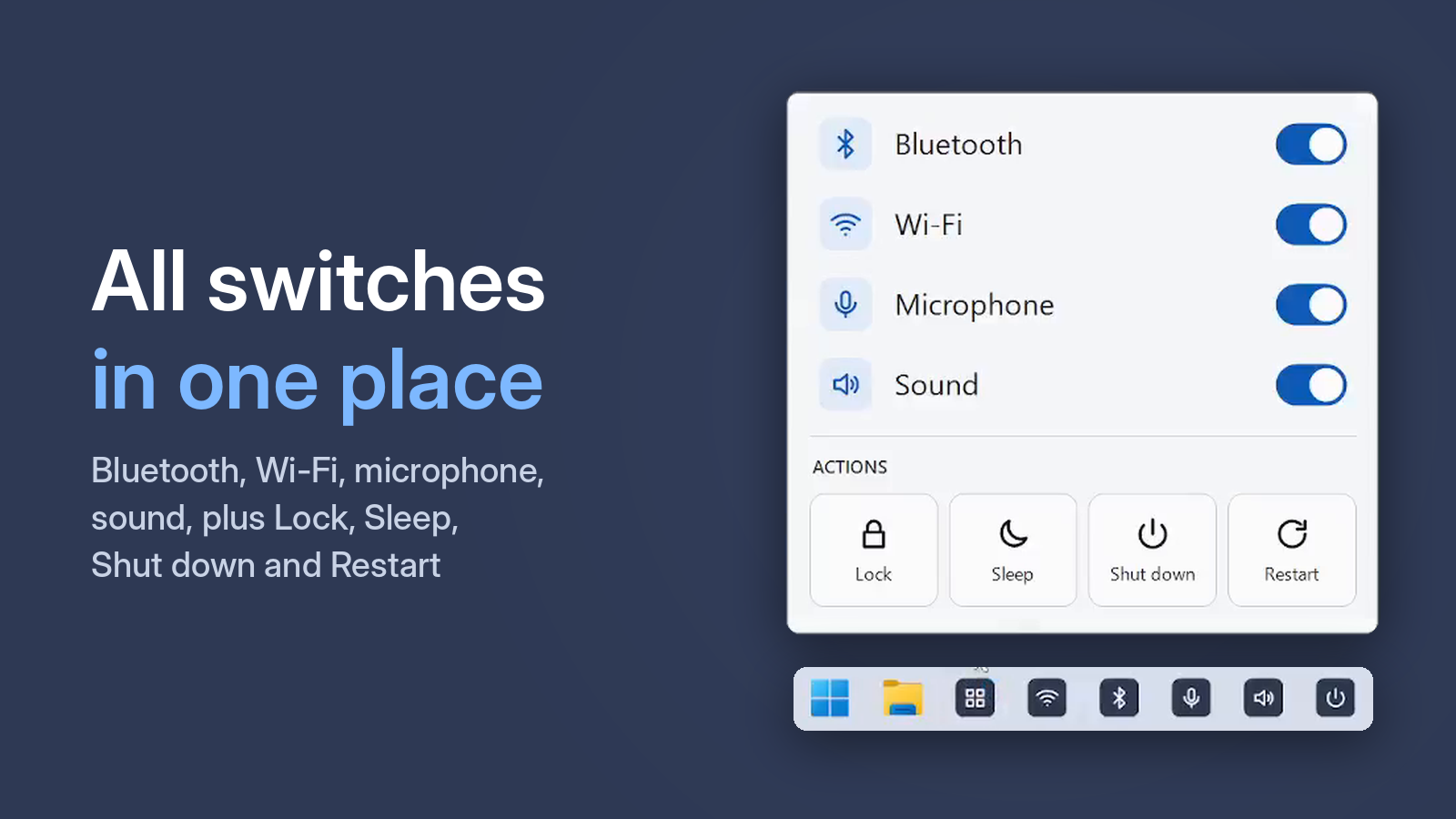
Stepping away for a minute? Lock the PC: the screen goes behind your password, and all apps and documents stay open. Here are the fastest ways on Windows 10 and 11.
Option 1. Win + L
The fastest way is Win + L. But many people don't know it or forget it, especially with a hand on the mouse.
Option 2. Ctrl + Alt + Del or the Start menu
Press Ctrl + Alt + Del → Lock. Or Start → your account picture → Lock.
Option 3. A lock shortcut on the desktop
- Right-click the desktop → New → Shortcut.
- Enter:
rundll32.exe user32.dll,LockWorkStation - Name it "Lock" and pin it to the taskbar.
It works, but the icon is plain and you set it all up by hand.
Option 4. One taskbar button
One Click Switcher adds a Lock button with a clear padlock icon to your taskbar. One mouse click and the PC is locked. Pin Sleep, Shut down and Restart next to it to keep every power action in one place.
Free · Windows 10 and 11 · no ads
Dynamic lock
Windows 10 and 11 can lock the PC when you walk away with your phone: Settings → Accounts → Sign-in options → Dynamic lock. The phone must be paired over Bluetooth. It kicks in after about a minute, not instantly, so a button is still handy.