Sleep Shortcut for Windows 10 and 11 — Put Your PC to Sleep in One Click
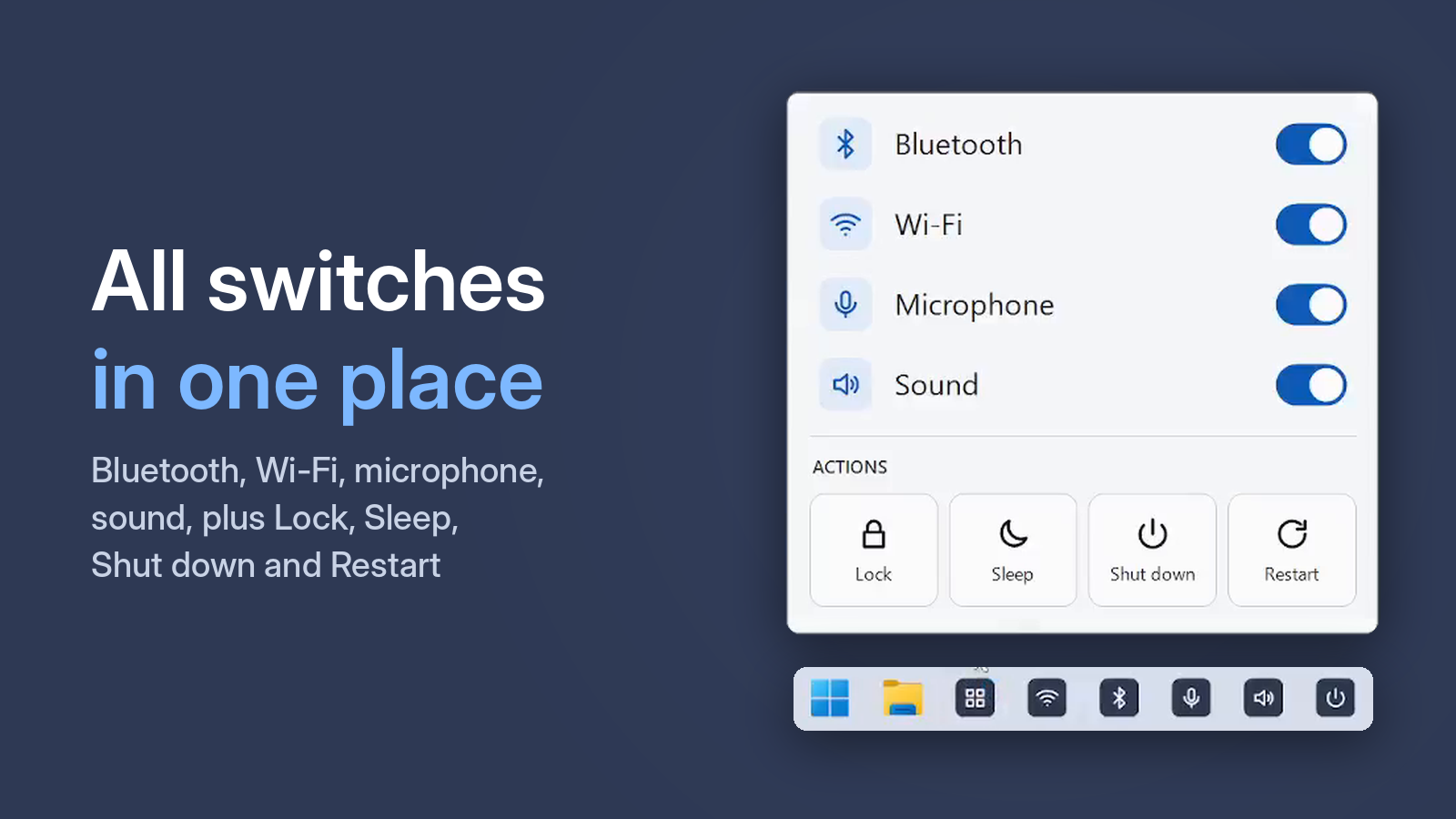
Sleep is the handiest way to "switch off" a PC for an hour or two: open apps and documents stay as they are, and the PC wakes up in seconds. Here is how to put it to sleep faster on Windows 10 and 11.
Option 1. The Start menu
Start → Power → Sleep. Three clicks and a bit of aiming.
Option 2. From the keyboard
Press Win + X, then U, then S. Or press Alt + F4 on an empty desktop and choose Sleep.
Option 3. A sleep shortcut on the desktop
A common tip is a shortcut with rundll32.exe powrprof.dll,SetSuspendState 0,1,0. Be aware: if hibernation is enabled, this command hibernates the PC instead of putting it to sleep, so it takes longer to shut down and start up.
Option 4. One taskbar button
One Click Switcher adds a Sleep button to your taskbar. One mouse click and the PC goes to sleep. No commands, no settings.
Free · Windows 10 and 11 · no ads
Sleep vs. shut down
In sleep, everything you had open stays put and the PC uses very little power. Shutting down closes all apps. Away for an hour or two — sleep; overnight or on the road — shut down.
No Sleep option?
Check Control Panel → Power Options → Choose what the power buttons do — that is where the Sleep item is shown or hidden. If it is not there either, a graphics or chipset driver is usually missing.